Retail Transactions
Open Transactions
The Open Transaction menu allows the user to view and settle all open transactions from one place. Open Transactions are transactions that are put on hold by the user for various reasons like, customer forgot his wallet, customer wanted to purchase some more item, and so on.
Users can have N number of open transactions on a given day, however, all open transactions must be closed before the day’s night audit. For a transaction to be listed as an open transaction the user must select the payment method as Pending Settlement in the Payment Details section of the Order Summary screen.
These transactions can also be cancelled and reopened as required.
Settling Open Transactions
Perform the following steps to settle any open transaction:
Navigate to Shop à Retail Transactions à Open Transactions. The Open Transactions option is displayed by default, and the open transactions are displayed on the screen.
Search for an open transaction using the search parameters available under the Advanced Search section.
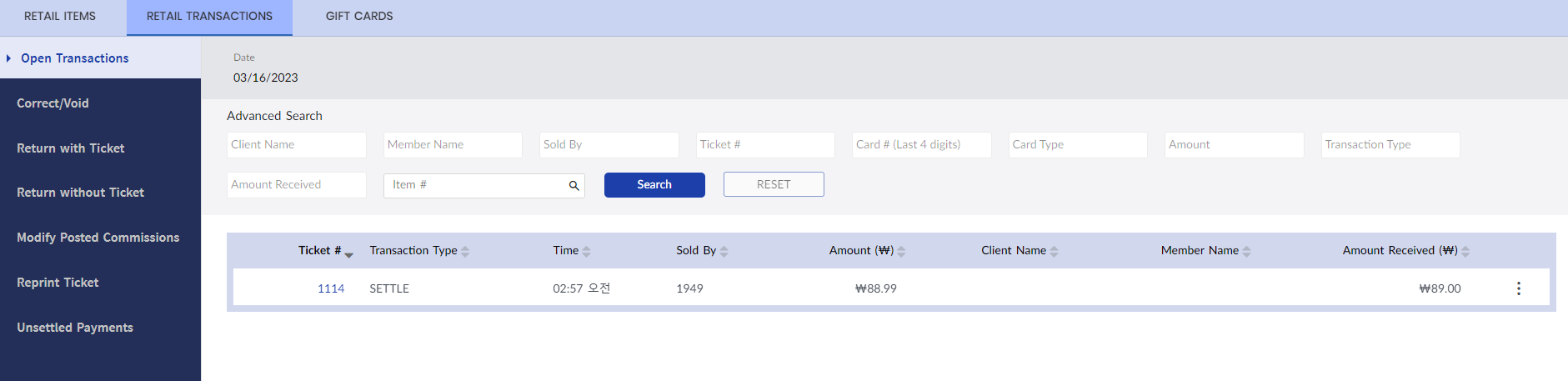
Click the More icon against the specific record. Select Settle.
The Order Summary screen is displayed.
Click Pay to settle the transaction.
Reopening Transactions
Transactions listed under the Open Transactions section can be reopened as required.
Perform the following steps to reopen transactions:
Navigate to Shop à Retail Transactions à Open Transactions.
Click the More icon against the specific record.
Select Reopen. When selected it will direct the user back to the Retail screen so that items can be added to the transaction before re-submitting for payment.
Cancelling Transactions
Transactions listed under the Open Transactions section can be cancelled as required.
Perform the following steps to cancel transactions:
Navigate to Shop à Retail Transactions à Open Transactions.
Click the More icon against the specific record.
Select Cancel.
When selected, a prompt with a message appears.
Would you like to cancel the ticket?
Select Yes to cancel the ticket.